
So now you downloaded the latest tar from apache website. If not yet, get it from ‘http://apache.techartifact.com/mirror/httpd/’ scroll down and get latest ‘httpd-x.x.x.tar.gz’ or ‘httpd-x.x.x.tar.bz2’ Download it to any folder you like desktop or downloads.
Move to that folder in a terminal and use the command tar xfz httpd-x.x.x.tar.gz or you can right click the file and choose ‘extract here’ from context menu. in the terminal move to the extracted folder cd httpd-x.x.x
1. The first step in compiling Apache is to configure it to your requirements here we are enabling dynamic loading of Apache modules and url rewriting features. In the terminal inside httpd-x.x.x folder enter the command
./configure –enable-so –enable-rewrite
If you are not getting any error fine. Skip to step 3.
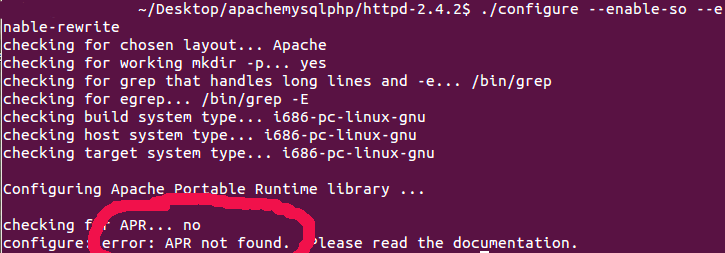
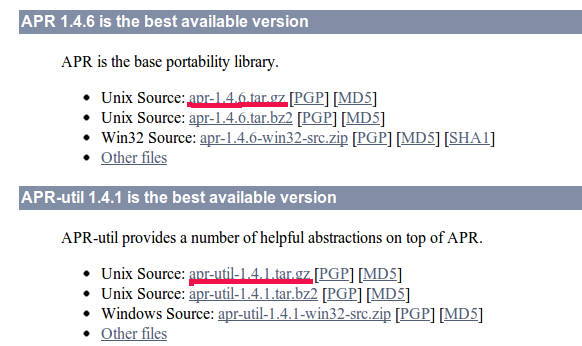
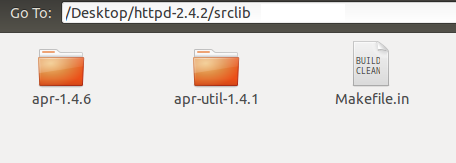
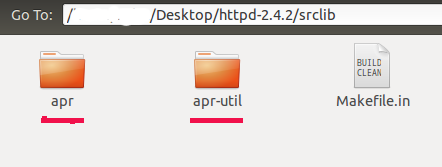
If you are getting an error ‘configure: error apr not found‘. Download apr and apr-utils (You have to download both of them) from ‘http://apr.apache.org/download.cgi’ extract the files. Put these two folders inside ./srclib. But the question is where the ./srclib folder is. Well, All you have to do is copy these to folders into your srclib folder inside the httpd.x.x.x folder where we are currently working. Rename the folders, remove the version numbers. The folder names should be apr and apr-utils
re-enter the command ./configure –enable-so –enable-rewrite

now the second probable error you will be facing is missing pcre – “Perl Compatible Regular Expressions”
checking for pcre-config… false
configure: error: pcre-config for libpcre not found.
Download pcret from ftp://ftp.csx.cam.ac.uk/pub/software/programming/pcre/ scroll down for latest version. Extract it, CD into extracted directory, enter command./configure
after successful ececution of that command enter next command make and after that sudo make install
here there is a chance for error “libtool: compile: unrecognized option `-DHAVE_CONFIG_H‘” .Well this error is because of the missing GCC. To overcome this error install g++.
sudo apt-get install g++
after installation of g++, compile and install pcre as mentioned above.
here we are ready to install apache again. enter following commands one by one inside the httpd.x.x.x folder (obviously in a terminal)
2. ./configure –enable-so –enable-rewrite
A long stream of status messages will scroll up your screen and will finish with following lines
……config.status: creating build/config_vars.sh
……config.status: creating include/ap_config_auto.h
……config.status: executing default commands
3.make
…….make[1]: Leaving directory `/home/user/location/httpd-x.x.x’
4. sudo make install
Apache by default installs into /usr/local/apache2 folder. To start apache enter the following commands
cd /usr/local/apache2
sudo bin/apachectl -k start
ignore the following message “httpd: Could not reliably determine the server’s fully qualified domain name, using 127.0.1.1. Set the ‘ServerName’ directive globally to suppress this message” This message is because most personal computers doesn’t have a fully qualified domain name.
open the browser and enter either localhost or 127.0.0.1 in the address bar, If you are getting following page without any error message your apache installation is successful.

If the page is not loading check the terminal for error message “/usr/local/apache2/bin/httpd: error while loading shared libraries: libpcre.so.1: cannot open shared object file: No such file or directory“

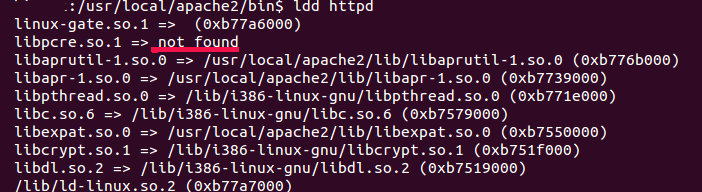
move to apache2/bin folder
cd /usr/apache2/bin
ldd httpd
use the following commands to delete so.cache and reconfigure library
sudo rm /etc/ld.so.cache
sudo /sbin/ldconfig
Start the apache
cd /usr/local/apache2
sudo bin/apachectl -k start
or
cd /usr/local/apache2/bin
sudo ./apachectl -k start







Fantastic. These were exactly the issues I had installing Apache 2.4 on Ubuntu 12.04. Thank you so much!!
brilliant guide thank you! well documented, helped me a lot
Fantastic!!!
Finally, I managed to install apache from the source for the first time. I was having exactly the problems you indicate in your posting.
I would like to add something. To get apache to start at boot time automatically, copy the apache control script into the start-up directory:
sudo cp /usr/local/apache2/bin/apachectl /etc/init.d/apachectl
make it executable:
sudo chmod +x /etc/init.d/apachectl
then, register it with the start-up manager by adding it to the default run levels:
sudo /usr/sbin/update-rc.d -f apachectl defaults
Thanks, Suraj Kumar